
From Inbox to M3, Instantly
Every day, clients place orders in whatever way is easiest for them in the moment. Some send an email, some send a text, and some call in orders.
For every order, a customer service representative has to read through the email, text, or call notes, open M3, and type the order in manually. That meant entering the customer, purchase order number, delivery date, and then every item and quantity, one line at a time.
This worked, but it has real costs:
It took time. An order with several items could take many minutes to enter, and a busy day could bring dozens of orders.
It left room for mistakes. When information is copied by hand from an email or a phone call, it is easy to mistype a quantity, pick a wrong item, or misread a delivery date.
Hard to keep track of. Orders were spread across inboxes, phones, and handwritten notes, with no single place to see what had come in and what was still waiting.
It depended on whoever was available. If the team was out or overloaded, orders simply waited.
Our Proposal
Instead of asking our team to retype orders, we gave clients a way to enter them themselves.
Our solution has two connected parts. The first is an Order Entry Portal, a website where clients can enter their own orders. The second is the Client Portal Order Workbench, a screen inside M3 where our customer service team reviews and confirms those orders.
Order Entry Screen Walkthrough
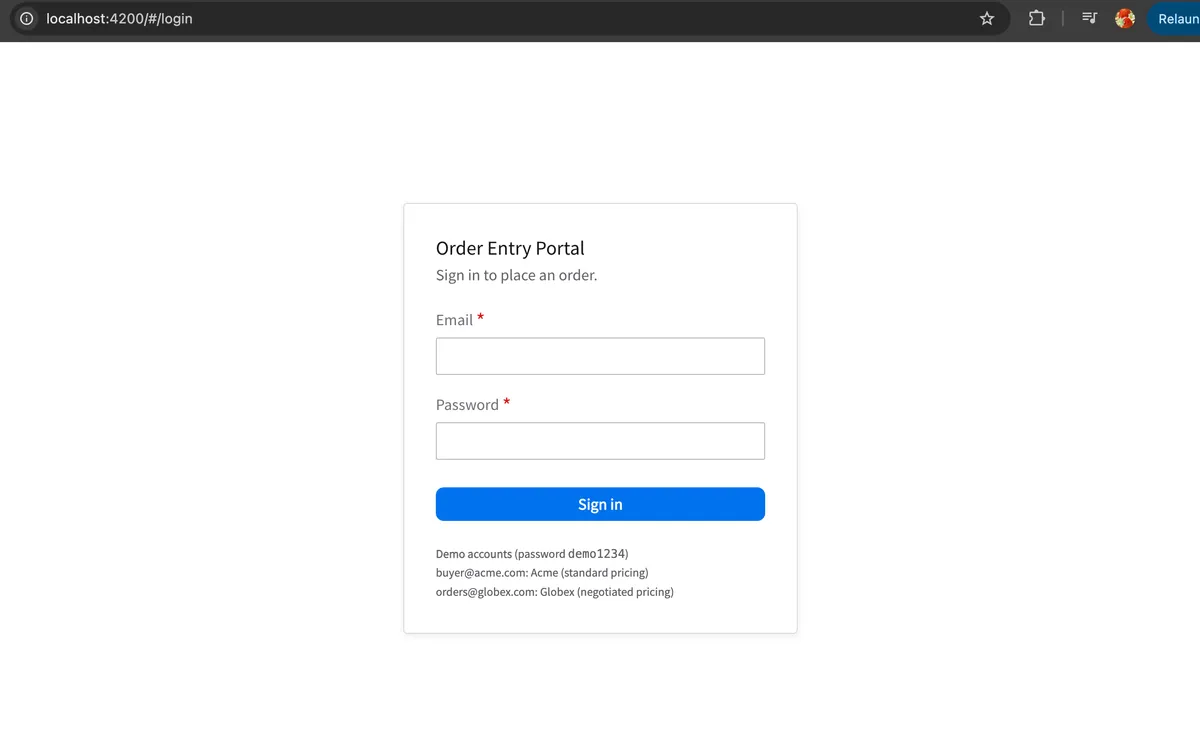
Each client has their own account and signs in with an email address and password. Signing in matters for more than security: it tells the portal who the client is, so it can display the company name, their delivery address, and the prices they have agreed with us. Clients never have to re-enter that information, and they only see their own account.
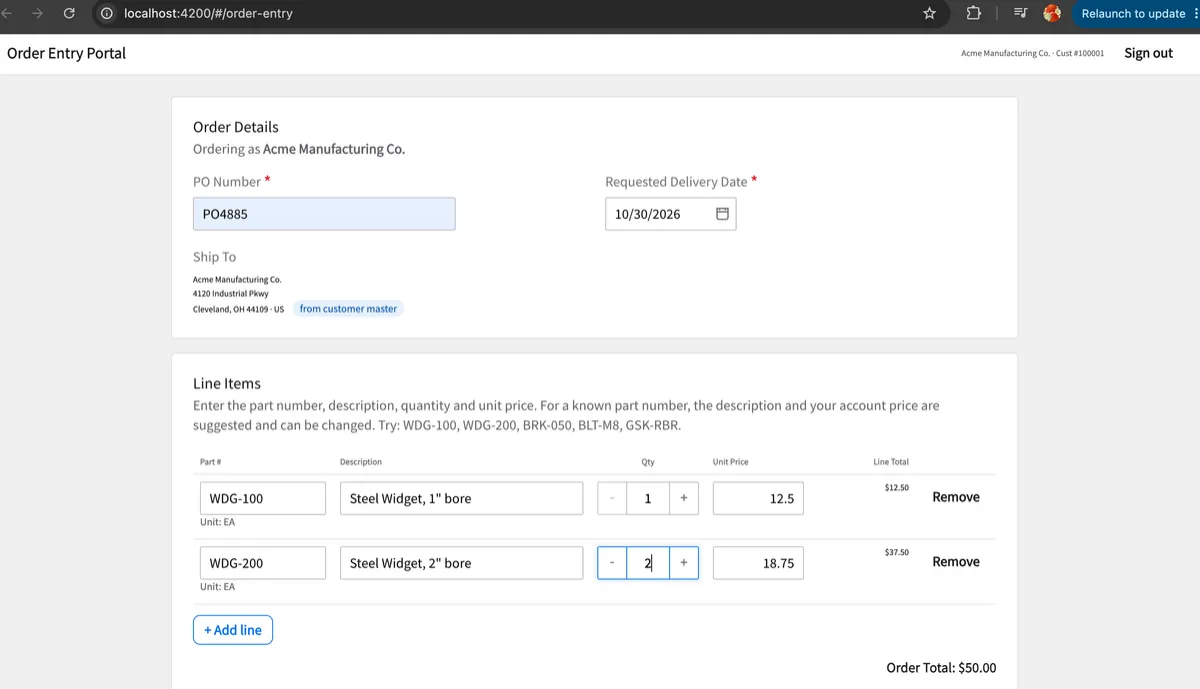
Once signed in, the client lands on the order page. The top of the screen shows the company they are ordering for and their customer number, along with a Sign Out button. The page is split into two sections.
Order Details - The client enters their purchase order number (the reference their own company uses to track the purchase) and picks a delivery date from the calendar. Below that, the portal shows the delivery address on file for their account straight from our records, so there's no risk of a delivery going to an old or mistyped address.
Line Items - This is where the client lists what they want to order. Each line has a part number, description, quantity, and a unit price. When a client types in a part number they've ordered before, the portal looks it up and fills in the description and the price on their account automatically, along with the unit it is sold in. The client can also manually enter the part number, description, quantity, and unit price if they wish.
Clients can add as many lines as they would like with the Add Line button and remove any line they no longer want. Each line shows its own total, and the order total at the bottom updates as the quantity is updated for transparency.
When everything looks right, the client clicks Submit Order. If anything important is missing, such as the purchase order number or a delivery date, the portal points it out before the order is sent.
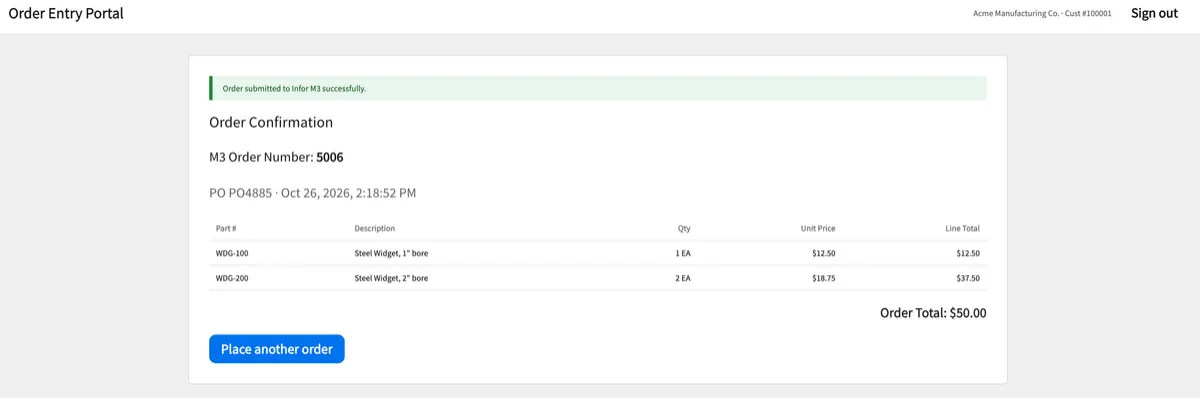
After submitting the order, the client sees a confirmation screen with a reference number, their purchase order number, the date and time it was placed, and a full summary of every item, quantity, and price, with the order total. This gives them a clear record that the order was received. From here, they can start another order with one click.
Client Portal Order Workbench
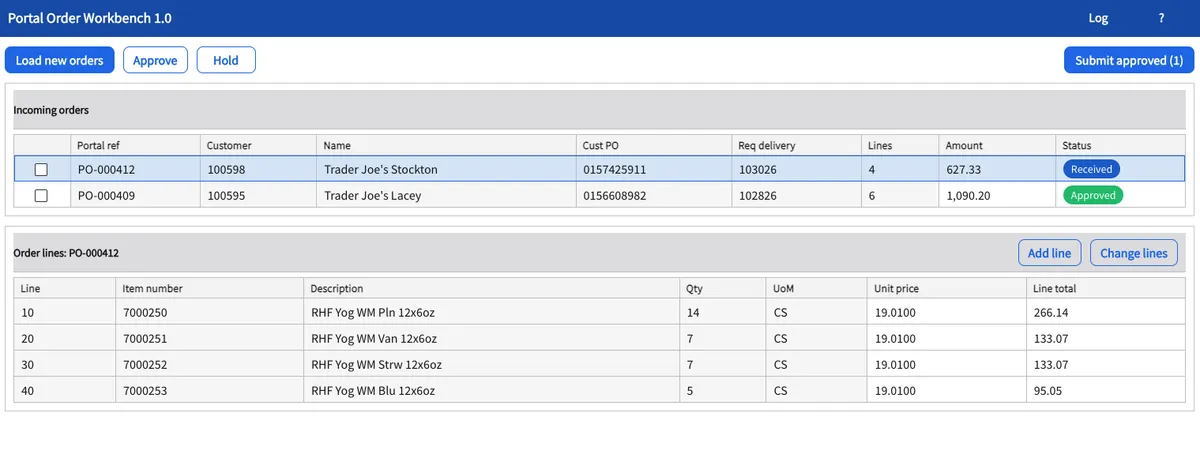
The second half of the solution lives inside M3, the system our customer service team already uses every day. The Workbench is a single screen, organized from top to bottom.
The Action Bar
Across the top of the screen is a row of buttons for the team's most common tasks:
Load New Orders brings in any new orders clients have placed through the portal.
Approve marks the selected orders as reviewed and ready.
Hold sets selected orders aside when something needs a follow-up with a client, such as an unusual quantity or a question about the delivery date.
Submit Approved, on the right, sends every approved order into M3 at once.
The Incoming Orders List
Below the action bar is a list of every order that has come in from the portal. Each row shows the key facts at a glance: the portal reference number (the same number the client saw on their confirmation), the customer number and name, the client's purchase order number, the requested delivery date, how many items are on the order, the order total, and the order's status.
Status is shown as a colored label, so it is easy to scan the list and see what still needs attention:
Received (blue) means the order has just arrived and has not been reviewed.
Approved (green) means the team has checked it and it is ready to be submitted.
On Hold (orange) means it has been set aside fro a follow-up.
Each row has a checkbox, so the team can tick one or several orders and approve or hold them together, which makes busy days much faster.
The Order Lines Panel
When a team member clicks on any order in the list, the bottom half of the screen fills in with its details such as line number, item number, description, quantity, unit, unit price, and line total. The panel's title shows which order is being viewed, so there is never any doubt about what is on screen. This is where the real review happens. The team can quickly confirm that the items, quantities, and prices make sense before approving.
If a client calls with a last-minute change, the team does not need to start over. The Add Line button adds an extra item to the order, and Change Lines lets them adjust what is already there, such as updating a quantity.
The Bigger Picture
This project is about more than saving time on typing. It is about meeting people where they already work. Clients get an easy, self-service way to order, and our customer service team gets those orders inside the system they already know. By connecting the two, we turn a manual process that depended on emails, calls, and copying by hand into a smooth, trackable flow, while keeping a person in charge of every order before it is final.

Kion Solutions
Empowering businesses with innovative Infor M3 solutions, integrations, and technology expertise.
Quick Links
Contact Us
© Kion Solutions 2026 All Rights Reserved.
Website Created by Local Online Pros